
After publishing my last blog post about Hostinger Agent, following recent news about AI agents from OpenAI, and exploring AI projects on Hugging Face 😂, I became even more excited to dive deeper into the world of AI agents. That curiosity led me to discover Hermes Agent, a powerful, open-source AI agent framework designed to run on your own hardware and help you accomplish real-world tasks.
In this post, I’ll share my hands-on experience installing and configuring Hermes Agent on Linux with OpenRouter, including how to set up an API key, fix the common 401 authentication error, and launch its web dashboard. I’ll also explain my experience trying to run Hermes Agent with Ollama for local AI, why I encountered context-window limitations on my current hardware, and what that means if you want to experiment with AI agents without paying for API tokens.
Table of Contents
How to Install Hermes Agent on Linux Using OpenRouter
In this tutorial, I’ll show you how I installed Hermes Agent on Linux without a desktop environment and configured it to use OpenRouter. The installation process is straightforward, but the first-time setup may take longer because the installer needs to prepare the required dependencies.
The commands below follow the official Hermes Agent documentation and the steps from my recording. You can refer to the official installation guide if you need additional details. Hermes Agent
Step 1: Run the Hermes Agent Installation Command
Open your Linux terminal and copy and paste the following command:
curl -fsSL https://hermes-agent.nousresearch.com/install.sh | bashPress Enter to begin the installation. The Hermes Agent installer will start and install the required components.
In my case, the installation finished quickly because I already had Hermes Agent configuration and settings data. If you’re installing it for the first time, the process may take longer while dependencies are installed.
Note: This command downloads and runs an installation script. If you want to inspect what it does before running it, review the official installation documentation first.
Step 2: Complete the Initial Setup
After the installer starts, follow the prompts displayed in your terminal.
In my recording, I was asked about the Nous Portal model options. Since I planned to use OpenRouter, I skipped that option by pressing Ctrl + C, as shown in the recording, and continued with the next setup steps.
Next, I selected local and pressed Enter. When asked about messaging configuration, I selected skip because I planned to configure messaging later.
Note: The setup prompts may vary depending on your Hermes Agent version. Follow the options displayed by your installer.
Once the installation finishes, check whether Hermes Agent is installed correctly by running:
hermes --helpThis command displays the available Hermes Agent commands. If the help information appears, you can continue to the model configuration step.
Step 3: Configure OpenRouter as Your AI Model Provider
Now that Hermes Agent is installed, let’s connect it to OpenRouter.
Run the following command in your terminal:
hermes modelThis opens the interactive model configuration process. GitHub
Follow these steps:
- Select OpenRouter from the list of supported providers.
- Enter your OpenRouter API key when prompted.
- Choose a supported AI model. I selected the NVIDIA Nemotron model shown as
nvidia/nemotron 3.5 ultra. - Select your preferred reasoning effort. I chose
mediumfor the reasoning effort.
Important: Hermes Agent requires a model with at least 64,000 tokens of context according to the current documentation. Before choosing a model, check its context-window capacity on the OpenRouter Models page. Hermes Agent
Once you’ve completed the configuration, Hermes Agent should be ready to connect to OpenRouter.
Step 4: Start Hermes Agent Dashboard
Start Hermes Agent Dashboard type following command:
hermes dashboardI ask simple question o test it as follow in chat
Hi, how are you?It you encounter a 401 authentication error, don’t worry. I encountered this issue during my own setup because my OpenRouter API key wasn’t generated correctly. I’ll explain how I fixed it in the dedicated troubleshooting on following section.
How to Fix the Hermes Agent 401 API Key Error
When I first tested Hermes Agent through the dashboard, I encountered a 401 authentication error after sending a simple message. I discovered that the problem was caused by an incorrectly generated OpenRouter API key.
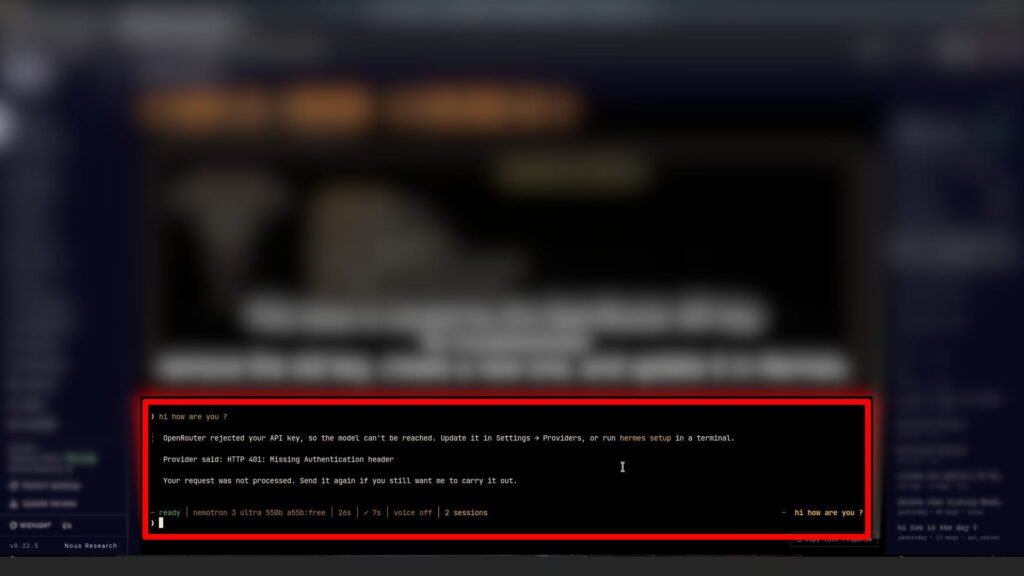
I generated a new API key, updated it in the dashboard, and restarted the gateway. After that, my chat started working correctly.
If you encounter the same error while using Hermes Agent with OpenRouter, follow these steps.
Step 1: Generate a New OpenRouter API Key
First, visit OpenRouter and sign in to your account.
- Open the API Keys section in the left sidebar.
- Click + New Key.
- Enter a name for your API key.
- Configure the expiration, credit limit, and reset limit according to your preferences.
- Click Create and complete the required two-factor authentication if prompted.
- Copy the newly generated API key.
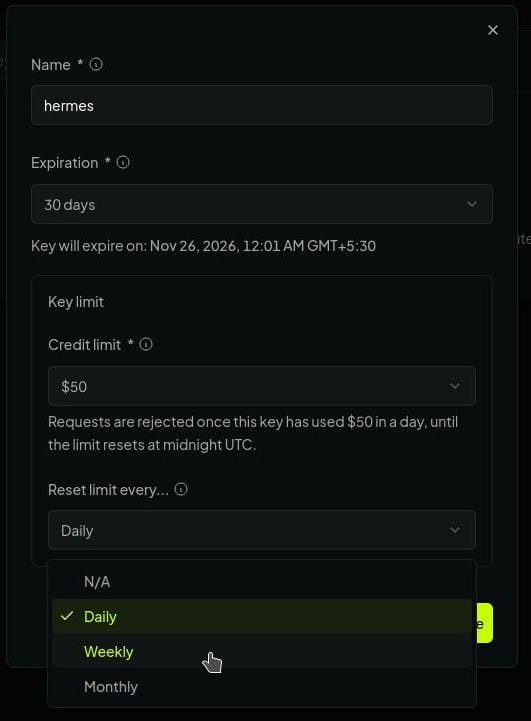
Keep your API key private. Never share it publicly or include it in screenshots.
Step 2: Update the API Key in Hermes Agent
Now, return to your Hermes Agent dashboard.
- Select Keys from the left sidebar.
- Find and select OpenRouter.
- Replace the existing API key with your new key.
- Save the changes.
Make sure you select OpenRouter rather than another provider. An API key generated for a different provider will not work as an OpenRouter key.
Step 3: Restart the Hermes Gateway
After updating the key, restart the Hermes gateway so the updated configuration can take effect.
Wait until the gateway status displays Running in the System section of the dashboard.
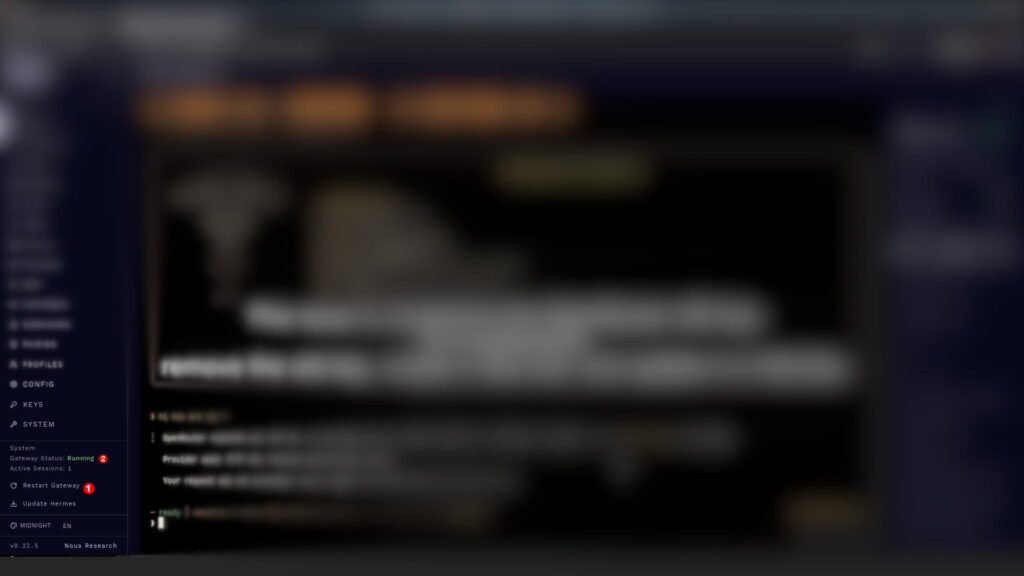
If the status does not change, check the gateway logs and confirm that the configuration was saved correctly.
Step 4: Retry Your Previous Chat
Return to the Chat section of the Hermes Agent dashboard.
Enter the following command in the chat. This retries your previous request.
/retry
In my test, Hermes Agent successfully responded after I replaced the incorrectly generated API key and restarted the gateway. The 401 error was resolved, and I could continue interacting with the agent.
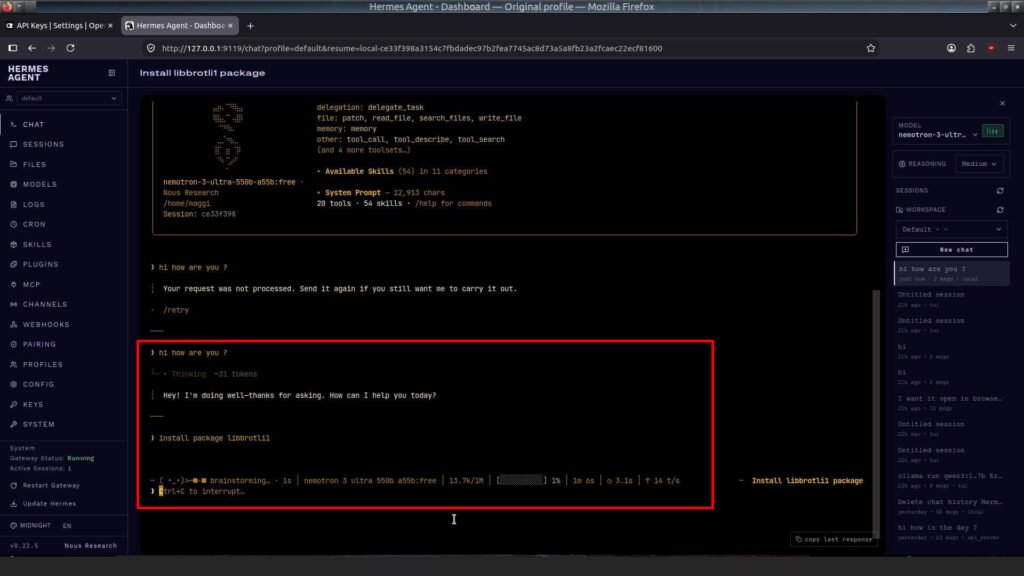
Testing Hermes Agent with a Real-World Task
Now I am testing the Hermes agent’s ability to perform a task, such as installing the package “libbrotli1.” You can try whatever you like.
It is actually working! It is asking for my credentials to proceed. I am entering them manually because I do not want to save my credentials inside the AI agent.
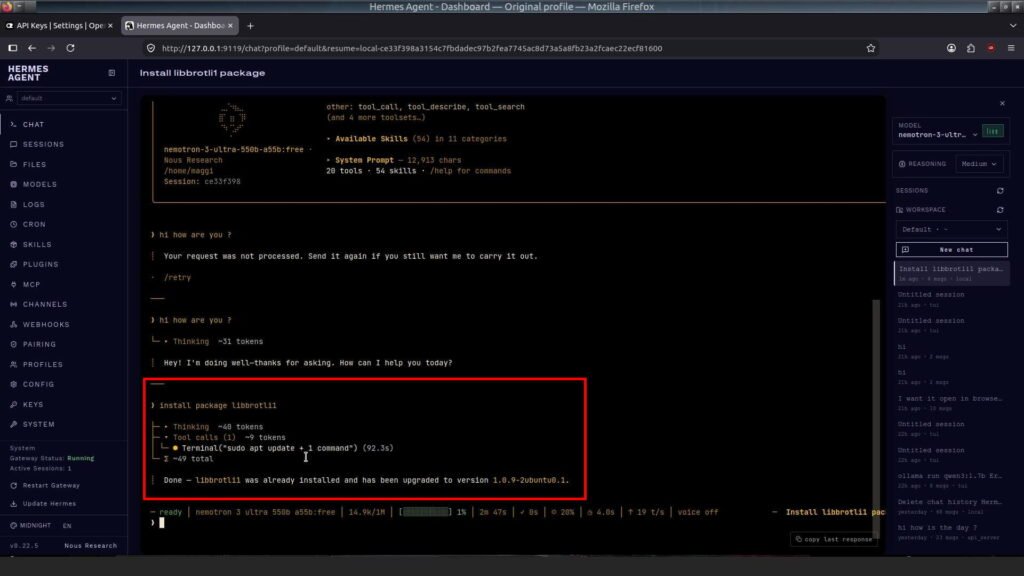
How to Uninstall Hermes Agent on Linux
If you want to remove Hermes Agent from your Linux system, open the terminal and run the following command:
hermes uninstallThe uninstall process will ask whether you want to keep or remove your configuration and user data. In my recording, I selected option 1 to preserve my data, pressed Enter, typed yes to confirm, and pressed Enter again. The uninstallation then completed successfully. If you want to remove everything, including your configuration and user data, use the --full option as explained in the official Hermes Agent uninstall documentation.
After uninstalling, you can use the ls command to check whether the installation directory still exists. In my case, the directory was no longer present. If you prefer manual removal instead, follow the official instructions carefully; if you installed the gateway as a system service, stop and disable that service before removing the remaining files.
Final Words: My Experience with Hermes Agent
My experience with Hermes Agent has been interesting, especially when I started testing what it could actually do. However, I quickly noticed that API token limits can be a challenge. After just three short informational chats, two longer chats, and one package-related task, I exhausted my daily OpenRouter token limit in around 30 minutes. This made me think about running Hermes Agent locally with Ollama and the Qwen3:1.7b model. My goal is to use a local AI agent without API token costs on my basic PC, which has 8 GB of RAM, a CPU, and no dedicated GPU.
Unfortunately, I ran into a context-window issue when trying to use Ollama with both the Hermes CLI and web dashboard. Ollama was working well on my PC, but the configuration I tested provided a 40K-token context, while Hermes Agent required at least 64K tokens. I tried several tweaks, but I couldn’t get it working as expected. I should upgrade my hardware to 16–32 GB of RAM and a six-core CPU before trying again. For now, I’ll continue exploring OpenRouter’s free options.
Despite these challenges, I enjoyed the hands-on experience. There’s a real difference between chatting with an AI and watching an AI agent carry out a task. If you’ve found other free API options or successfully run Hermes Agent with Ollama on modest hardware, please share your experience in the comments. I’d love to learn from you!